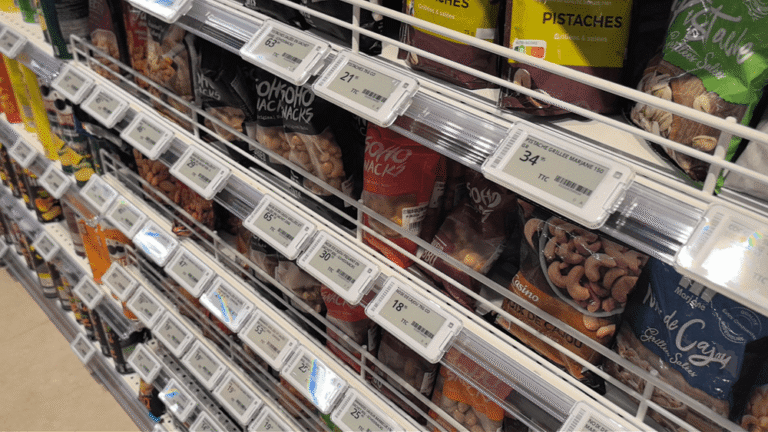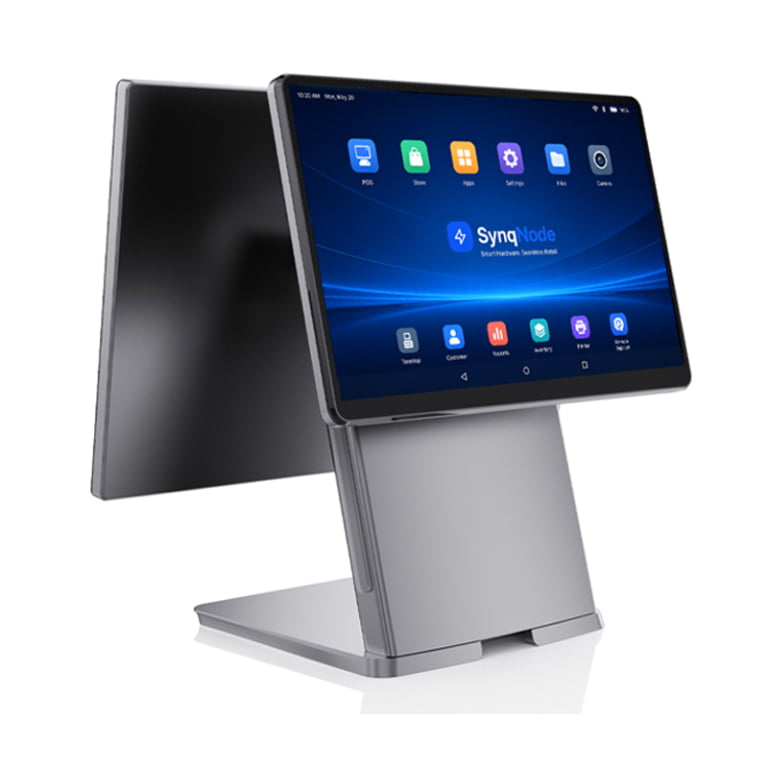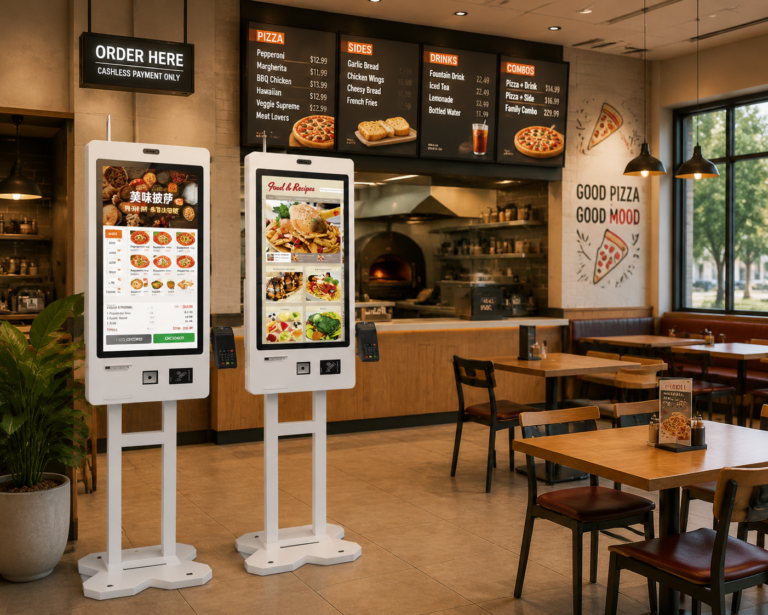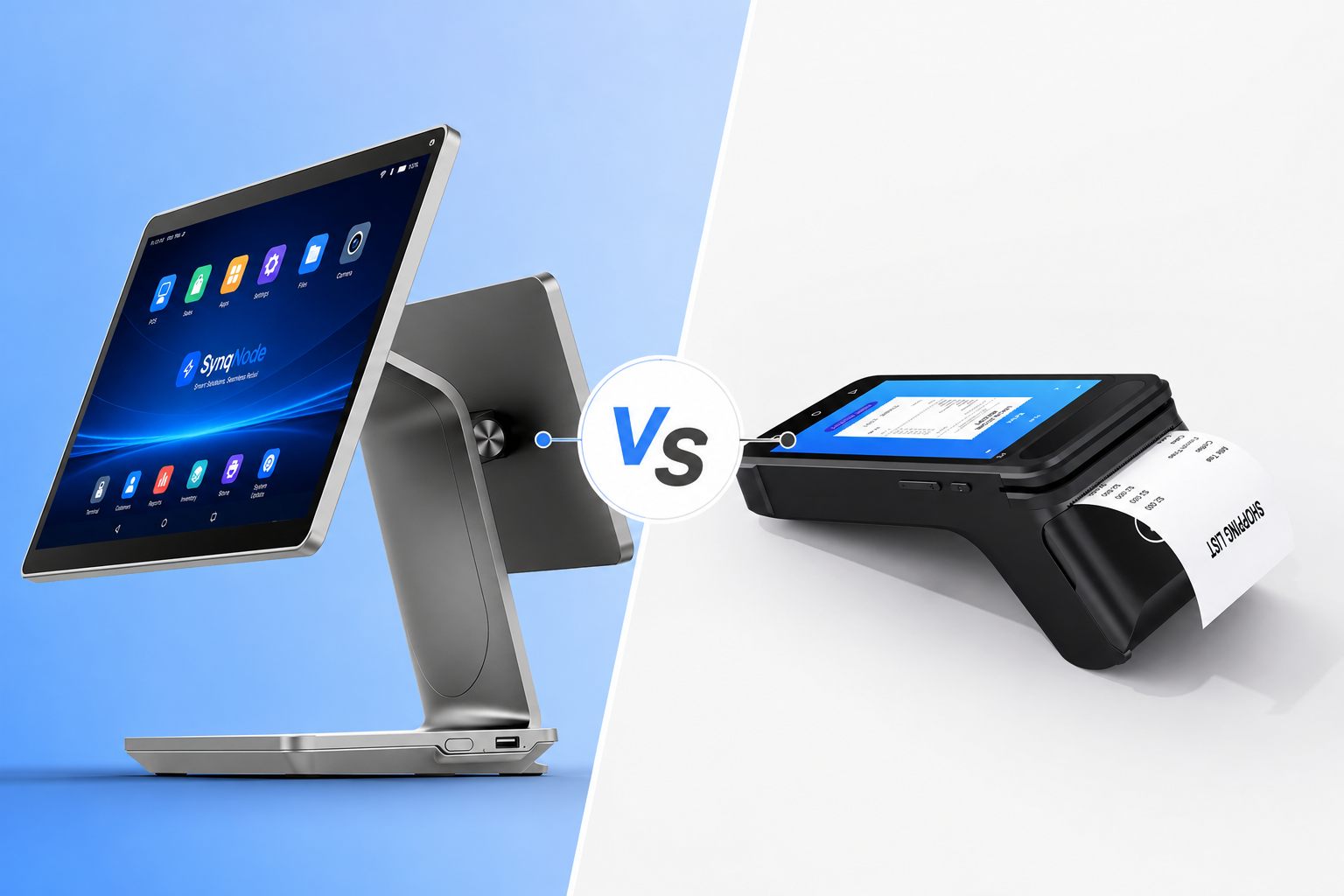
A restaurant POS system is not one device — it is an interconnected ecosystem of terminals, kitchen displays, printers, payment hardware, network infrastructure, and peripherals that must work flawlessly together during the Friday night rush. This checklist covers every hardware component, specification, and installation step needed for a reliable restaurant POS deployment — written for POS software vendors, system integrators, and multi-location restaurant operators.
Table of Contents
- Why Restaurant POS Hardware Is Different
- Core Hardware Checklist: 12 Essential Components
- POS Terminals: Fixed vs Handheld
- Kitchen Display System (KDS) vs Kitchen Printers
- Receipt Printers: Thermal vs Impact
- Payment Hardware: EMV, NFC, and PCI Compliance
- Network Infrastructure: The Backbone
- Peripherals: Cash Drawers, Scanners, Displays
- Power Protection and Backup
- Hardware by Restaurant Format
- Installation: 4-Phase Deployment Plan
- 10 Common Hardware Mistakes
- Vendor Selection: What to Ask Your Hardware Partner
- Frequently Asked Questions
1. Why Restaurant POS Hardware Is Different
Restaurant POS environments are uniquely hostile to electronics. Unlike retail stores with clean, climate-controlled counters, restaurant hardware operates in conditions that would destroy consumer-grade equipment within months:
- Airborne grease from cooking coats every surface, including cooling fans, heat sinks, and internal circuitry
- Temperature extremes — kitchen-adjacent terminals experience 35°C+ ambient heat during service
- Liquid exposure — drink spills, spray cleaning, and condensation from refrigeration
- Grease and flour dust that infiltrate vented enclosures and create insulating layers on internal components
- 24/7 operation in QSR and convenience formats — no downtime for the environment to settle
- Physical abuse — bumped, knocked, splashed, and dropped during the rush
This is why consumer tablets (iPads, Android tablets) in consumer-grade cases are not restaurant POS hardware — no matter what the marketing says. They lack sealed enclosures, drop ratings, grease-resistant screens, and the thermal engineering needed for 12+ hour shifts in hot, humid environments.
For ISVs and integrators: If your restaurant POS software is deployed on inadequate hardware, your software gets blamed for crashes that are actually caused by thermal throttling, grease ingress, or connectivity drops. Specifying the right hardware protects your software reputation and reduces support tickets.
2. Core Hardware Checklist: 12 Essential Components
Here is the complete hardware checklist for a full-service restaurant POS deployment. Not every item is needed for every format, but every item should be evaluated:
| # | Component | Priority | Key Specification |
|---|---|---|---|
| 1 | POS Terminal (countertop) | Essential | 15.6" capacitive touch, fanless, aluminum chassis |
| 2 | Handheld POS (tableside) | Recommended | Android, 5,000 mAh+, 1.5m drop rated, integrated scanner |
| 3 | Kitchen Display System (KDS) | Recommended | 15"+ display, IP54+ front panel, VESA mount |
| 4 | Kitchen Printer (impact) | Essential (backup) | Impact/dot-matrix, 76mm paper, heat/grease resistant |
| 5 | Receipt Printer (thermal) | Essential | 80mm thermal, 250mm/s+, USB + LAN ports |
| 6 | Payment Terminal | Essential | EMV chip + NFC contactless, PCI PTS certified |
| 7 | Cash Drawer | Essential (if cash) | Heavy-duty, RJ11 interface, 5 bill / 8 coin slots |
| 8 | Customer Display | Recommended | 10.1" secondary display or VFD, order confirmation |
| 9 | Network (router + switch + AP) | Essential | Business-grade, Gigabit, Wi-Fi 6, VLAN support |
| 10 | UPS (uninterruptible power) | Recommended | 750VA+ for router/switch/main terminal |
| 11 | Barcode Scanner | Optional | 2D scanner, USB or Bluetooth, for retail/inventory |
| 12 | 4G/LTE Failover | Recommended | Cellular modem or SIM-enabled router for internet backup |
3. POS Terminals: Fixed vs Handheld
Fixed Countertop Terminals
The primary order-entry station for most restaurants. Must survive 12+ hour shifts, grease exposure, and constant touch input. Key specifications:
- Screen: 15.6" capacitive touch (multi-touch, not resistive) — the standard for restaurant POS
- Cooling: Fanless (aluminum chassis) — essential for restaurant environments (see Chapter 1 for why)
- Processor: Intel N-series (6W) or Celeron (10W) — sufficient for all POS software
- I/O ports: USB-A x3+, LAN (Gigabit), COM (for cash drawer), HDMI (customer display)
- Ingress protection: IP54 front panel minimum (splash and dust resistant)
- Mounting: VESA-compatible mount with cable management
Handheld POS for Tableside Ordering
Tableside ordering reduces errors, speeds up table turns, and enables payment at the table. For restaurants, handhelds must be enterprise-grade — not consumer tablets:
- Weight: Under 400g for all-day carrying comfort
- Battery: 5,000 mAh minimum — hot-swappable batteries eliminate downtime
- Drop rating: Must survive 1.5m drops onto concrete (consumer tablets typically fail at 1m)
- Integrated scanner: Dedicated 2D scan engine (not camera-based) for barcode and QR scanning
- Integrated payment: Built-in NFC + EMV for tableside payment — no separate card reader needed
- IP rating: IP54+ for splash resistance (drinks will be spilled on it)
- Connectivity: Wi-Fi 6 (802.11ax) for dense device environments
Consumer tablet trap: An iPad in a case costs less upfront ($500 vs $800+), but a consumer tablet lacks drop rating, sealed enclosure, hot-swappable battery, integrated scanner, and enterprise-grade Wi-Fi. In a restaurant, expect to replace it every 12–18 months vs 4–5 years for an enterprise handheld.
4. Kitchen Display System (KDS) vs Kitchen Printers
This is one of the most consequential hardware decisions in restaurant POS. Both approaches work, but they serve different operational needs:
| Factor | KDS (Digital Display) | Impact Printer (Paper) |
|---|---|---|
| Order visibility | Real-time digital display, color-coded by urgency | Physical ticket — can be lost, smeared, or misread |
| Order modification | Instant screen update when server modifies order | Requires new ticket print — old ticket may still be on the line |
| Cooking time tracking | Built-in timers, color escalation for overdue orders | No automated timing — chef tracks manually |
| Noise level | Silent (visual + optional audio alert) | Loud (can be useful in noisy kitchens, annoying in quiet ones) |
| Consumables | No paper or ribbon | Continuous paper + ribbon cost |
| Kitchen environment | Requires IP54+ rated display for grease/steam protection | Inherently heat/grease resistant (impact printing is mechanical) |
| Upfront cost | Higher (display + mount + software license) | Lower (printer + paper supply) |
| Network dependency | Stops working if network goes down (unless local fallback) | Works as long as POS terminal has power (locally connected) |
Best practice: Use both. A KDS as the primary kitchen communication system, with an impact printer as backup for network outages and for stations that prefer physical tickets (bar, expediter, dessert). This redundancy is not optional for high-volume operations — it is insurance against a single point of failure.
KDS Hardware Specifications
- Screen size: 15" or larger — visible from 3+ feet away
- Brightness: 400+ nits — readable in kitchen lighting conditions
- Front panel: IP54+ rated for grease, steam, and splash protection
- Interaction: Touchscreen or bump bar (physical buttons) — both have advocates; touchscreens are more flexible, bump bars are more reliable with wet/greasy hands
- Mounting: VESA-compatible arm or wall mount with safe cable routing
- Operating temperature: 0°C to 50°C+ — kitchens get hot
5. Receipt Printers: Thermal vs Impact
Restaurants need two types of printers, and confusing them is a common mistake:
| Factor | Thermal Printer (Front-of-House) | Impact Printer (Kitchen) |
|---|---|---|
| How it works | Heat-sensitive paper — no ink | Ink ribbon + pressure on paper |
| Speed | 250mm/s+ (very fast) | Slower (~80-100mm/s) |
| Noise | Near-silent | Loud (audible alert in kitchen) |
| Heat/grease resistance | Poor — thermal paper turns black when exposed to heat | Excellent — ink on paper survives heat and grease |
| Paper width | 80mm (customer receipts) | 76mm (kitchen tickets) |
| Connectivity | USB + LAN (networked for multi-terminal sharing) | USB + LAN |
| Where to deploy | Front counter, server station — customer receipts | Kitchen — order tickets for cooking staff |
Critical mistake: Using a thermal printer in the kitchen. Thermal paper turns black at ~60°C. In a restaurant kitchen, ambient temperature near the cooking line can exceed 40°C, and a ticket placed near a heat lamp will turn black and become unreadable within minutes. Always use impact printers for kitchen tickets.
6. Payment Hardware: EMV, NFC, and PCI Compliance
Payment hardware in restaurants has unique requirements compared to retail — tableside payment, tip processing, and high-volume contactless transactions during peak hours.
Required Payment Capabilities
- NFC/contactless: Apple Pay, Google Pay, tap-to-pay cards — must complete in under 2 seconds for QSR throughput
- EMV chip reader: Contact chip card transactions — required for liability shift compliance
- Tip adjustment: Must support pre-auth tip adjustment (tip added after initial authorization) — critical for restaurants
- Tableside payment: Handheld terminal with integrated payment — enables pay-at-table without walking away with the customer's card

PCI Compliance Checklist
- ✓Payment device model appears on the PCI SSC Approved PTS Device List (verify model number AND approval version)
- ✓Device is supported and properly injected/provisioned by your payment processor
- ✓Point-to-point encryption (P2PE) solution is PCI-listed — reduces your PCI DSS scope
- ✓Payment network is VLAN-segmented from guest Wi-Fi and non-POS devices
- ✓Device inventory maintained: model, serial number, firmware version, location, deployment date
- ✓Physical inspection process for tamper detection on all payment devices
- ✓Firmware update plan: who applies updates, how often, and how to verify
7. Network Infrastructure: The Backbone
More restaurant POS problems are caused by bad networking than by bad hardware. A POS system is only as reliable as the network connecting it. Here is what a restaurant POS network requires:
Network Architecture
- Business-grade router: Not the ISP-provided consumer router. Needs VLAN support, firewall rules, and traffic management for 20+ concurrent devices.
- Gigabit switch: Connects all fixed POS terminals, KDS, and printers via Ethernet. Minimum 16 ports for a full-service restaurant.
- Wi-Fi 6 access points: 1 AP per 1,500 sq ft for dense device environments. Separate SSID for POS devices vs guest Wi-Fi.
- VLAN segmentation: Separate VLANs for POS/payment, kitchen devices, back-office, and guest Wi-Fi. This is a PCI DSS requirement, not a suggestion.
- 4G/LTE failover: When the internet goes down (and it will), cellular failover keeps transactions and KDS running. Auto-failover, no manual configuration.
Wired vs Wireless
| Device | Connection | Why |
|---|---|---|
| Countertop POS terminal | Ethernet (wired) | Maximum stability, zero interference, PCI-friendly |
| KDS display | Ethernet (wired) | Kitchen walls/appliances block Wi-Fi; wired = reliable |
| Kitchen printer (LAN) | Ethernet (wired) | Print reliability is critical — no dropped connections |
| Handheld POS | Wi-Fi 6 | Mobility required — must have robust Wi-Fi coverage |
| Receipt printer (counter) | USB or Ethernet | USB for single-terminal, LAN for shared multi-terminal |
8. Peripherals: Cash Drawers, Scanners, Displays
Cash Drawers
Even in cash-light restaurants, a cash drawer is needed for tips, small cash transactions, and petty cash. Specifications:
- Interface: RJ11 (12V trigger from receipt printer or POS terminal) — most common
- Construction: Heavy-gauge steel, not plastic
- Slots: 5 bill / 8 coin minimum for standard restaurant cash handling
- Lock: Key-lock with removable till for end-of-shift reconciliation
Barcode Scanners
Essential for restaurants with retail components (coffee bags, bottled sauces, merchandise) and inventory management:
- 2D scanning: Must read both 1D barcodes and QR codes
- USB wired: For fixed counter stations — no charging needed
- Bluetooth wireless: For inventory receiving and stock counts
Customer-Facing Display
Shows order details and total to the customer. Reduces chargeback disputes and doubles as a promotional screen:
- Option A: 10.1" secondary LCD connected via HDMI — shows order items and total
- Option B: Dual-screen POS terminal with integrated customer display
- Option C: VFD (vacuum fluorescent display) — simple, durable, text-only — lowest cost
9. Power Protection and Backup
A power surge or brief outage can crash your POS system, corrupt data, and bring service to a halt during peak hours. Power protection is cheap insurance:
- UPS for network core: Router, switch, and modem on a 750VA+ UPS — gives you 15-30 minutes to ride through brief outages and keep the network alive for handhelds and KDS
- UPS for main terminal: Keeps the primary POS terminal running through a 5-10 minute outage — enough to complete active transactions and gracefully shut down
- Surge protection: All POS hardware on surge protectors — not the same as UPS, but prevents damage from voltage spikes
- Spare hardware: One spare receipt printer and one spare payment reader on-site — a $300 spare saves $2,000+ in downtime during a Friday night
10. Hardware by Restaurant Format
Hardware needs vary dramatically by restaurant type. Here is a quick-reference matrix:
| Hardware | QSR / Fast Casual | Full Service | Bar / Nightclub | Cafe / Bakery |
|---|---|---|---|---|
| Countertop terminal | Essential — speed is critical | Essential — order entry station | Essential — spill resistant | Essential — compact footprint |
| Handheld POS | Optional (queue-busting) | Essential — tableside ordering | Useful — tableside tabs | Optional |
| KDS | Recommended — speed routing | Essential — multi-station | Optional (bar tickets) | Optional |
| Kitchen printer | Essential (or KDS backup) | Essential — KDS backup | Essential — bar/drink tickets | Recommended |
| Cash drawer | Essential | Essential | Essential — high cash volume | Recommended |
| Customer display | Essential — order confirmation | Recommended | Optional | Recommended |
| Self-service kiosk | Recommended — order ahead | Not typical | Not typical | Optional |
11. Installation: 4-Phase Deployment Plan
Phase 1: Pre-Installation Planning
- ✓Mark every device location on the floor plan
- ✓Verify power outlets at each install point
- ✓Plan Ethernet cable routes — conduit if through walls
- ✓Create network diagram with pre-assigned static IPs for all fixed devices
- ✓Confirm all hardware is compatible with chosen POS software
- ✓All cables, adapters, and mounting hardware on-site before install day
Phase 2: Network and Hardware Setup
- ✓Power up router first, complete boot sequence
- ✓Change default admin password immediately
- ✓Configure VLANs: POS/payment, kitchen, back-office, guest Wi-Fi
- ✓Set up DHCP reservations for all fixed devices (printers, KDS, terminals)
- ✓Configure Wi-Fi APs: channel optimization, WPA3, POS SSID
- ✓Mount and connect all fixed hardware (terminals, KDS, printers)
- ✓Verify IP assignment and internet connectivity on every device
Phase 3: Software, Peripherals, and Testing
- ✓Install POS software on all terminals
- ✓Configure menu, modifiers, tax rates, and user roles
- ✓Connect and test every peripheral: printer, scanner, cash drawer, display
- ✓Run end-to-end test: order entry → kitchen routing → payment → receipt → refund
- ✓Test offline mode: disconnect internet, verify transactions queue and sync
- ✓Test 4G failover: verify auto-switch and auto-recovery
Phase 4: Staff Training and Go-Live
- ✓Train every staff member on their specific workflow
- ✓Post laminated quick-reference cards at each terminal
- ✓Designate a POS administrator (manager) for daily open/close procedures
- ✓Create a POS Runbook: open/close, refunds, voids, split checks, declined cards
- ✓Soft launch: test with limited menu or off-peak hours before full go-live
12. 10 Common Hardware Mistakes
| # | Mistake | Consequence | Fix |
|---|---|---|---|
| 1 | Using consumer tablets as POS | No drop rating, no sealed enclosure, battery degrades in 12 months | Use enterprise-grade POS terminals with fanless design and IP54+ |
| 2 | Thermal printer in the kitchen | Tickets turn black and unreadable from heat | Use impact printers for kitchen; thermal only for front-of-house |
| 3 | No network segmentation | Guest Wi-Fi congests POS traffic; PCI DSS non-compliance | Separate VLANs for POS, kitchen, back-office, and guest Wi-Fi |
| 4 | No internet failover | Cloud POS goes down when ISP has an outage — total service stop | 4G/LTE failover modem with automatic switchover |
| 5 | Wi-Fi for kitchen devices | Metal appliances and grease-laden walls block signal — KDS drops orders | Wire all kitchen devices (KDS, printer) with Ethernet |
| 6 | No spare hardware on-site | Printer failure on Friday night = no receipts until Monday | Keep one spare receipt printer and one spare payment reader |
| 7 | No UPS for network core | Brief power blip crashes router — full POS reboot takes 5+ minutes | UPS on router, switch, and main terminal |
| 8 | Skipping end-to-end testing | Discover on opening night that kitchen printer doesn't receive orders | Full test: order → kitchen → payment → receipt → refund before go-live |
| 9 | Inadequate staff training | Staff errors look like hardware problems — unnecessary support calls | Train every role; post laminated quick-reference cards |
| 10 | Buying on price, not TCO | Cheap hardware fails in 12 months; replacement + downtime costs more | Calculate 3-year TCO: hardware + maintenance + downtime + replacement |
13. Vendor Selection: What to Ask Your Hardware Partner
For ISVs, integrators, and multi-location operators, choosing the right hardware manufacturer is as important as choosing the hardware itself. Ask these questions:
- 1Do you design your own mainboards? Manufacturers with in-house engineering can fix firmware bugs and customize I/O — trading companies cannot.
- 2Do you have an ISO 9001 certified factory? Quality control matters — every terminal should pass aging tests before shipping.
- 3Can you guarantee model continuity for 3-5 years? Multi-location rollouts need identical hardware across all stores — model changes mid-deployment create chaos.
- 4Do you provide SDKs and driver packages? ISVs need peripheral SDKs (printer, scanner, cash drawer) and OS-level drivers for integration.
- 5Can you do OEM/ODM customization? Custom logo printing, boot screens, I/O configurations, and packaging for brand consistency.
- 6What is your thermal engineering capability? Fanless design requires in-house thermal engineering — ask for thermal test data under sustained load.
- 7What is your warranty and replacement process? How fast can you ship a replacement? Is cross-shipping available? What is the RMA turnaround time?
Building a Restaurant POS Hardware Deployment?
SynqNode engineers fanless POS terminals, kitchen displays, impact and thermal printers, and handheld POS devices for restaurant environments. We provide SDKs, certified drivers, and OEM/ODM customization for ISVs and integrators deploying at scale.Request Hardware Consultation
Frequently Asked Questions
Do I need both a KDS and a kitchen printer?
For high-volume operations, yes. The KDS is the primary kitchen communication system (real-time updates, timing, order prioritization), and the impact printer serves as a backup when the network goes down. For small operations (under 50 covers/day), a single kitchen printer may suffice. For mid-volume operations, a KDS with printer backup is the recommended configuration.
Can I use an iPad as a restaurant POS terminal?
For a low-volume cafe or pop-up, possibly. For a real restaurant: no. Consumer tablets lack drop ratings (they shatter at 1m), have no sealed enclosure (grease and liquid ingress), have non-removable batteries (the device is down while charging), and lack enterprise-grade Wi-Fi for dense environments. An enterprise handheld POS costs more upfront but lasts 4-5 years vs 12-18 months for a consumer tablet in a restaurant.
How many access points does my restaurant need?
As a rule of thumb, one Wi-Fi 6 access point per 1,500 sq ft of service area. Kitchens need special attention — metal appliances, stainless steel walls, and grease-laden air all attenuate Wi-Fi signals. Always conduct a wireless site survey before deployment. If handheld POS devices are used tableside, ensure coverage extends to every table, the patio, and the bar.
What happens if the internet goes down during service?
With proper setup, service continues. Your POS software should support offline mode (queue transactions and sync when connectivity returns). A 4G/LTE failover modem provides automatic internet backup. KDS and kitchen printers connected via LAN continue working as long as the local network has power. UPS units keep the network core running through brief power outages.
How much should I budget for restaurant POS hardware?
A full-service restaurant with one countertop terminal, two handhelds, KDS, kitchen printer, receipt printer, payment terminal, cash drawer, customer display, and network gear typically costs $4,000-$7,000 per station set. This does not include POS software licensing or installation labor. For multi-location deployments, OEM/ODM hardware partnerships can reduce per-unit cost by 20-40%.
Should I use a fanless POS terminal in a restaurant?
Yes — restaurants are one of the strongest use cases for fanless POS hardware. Airborne cooking grease is drawn into fan-cooled terminals through their vents, coating internal components and causing thermal failures within 6-12 months. Fanless terminals with sealed aluminum enclosures have no air intake, so grease and dust cannot enter. See our detailed fanless vs fan-cooled POS comparison for the full engineering analysis.
How do I ensure PCI compliance for my restaurant POS?
PCI compliance is not a single certification — it is a set of practices. Key steps: (1) use payment devices on the PCI SSC Approved PTS Device List, (2) segment your payment network via VLANs, (3) use P2PE (point-to-point encryption) to reduce your PCI DSS scope, (4) maintain a device inventory with firmware versions, (5) inspect payment devices regularly for tampering, and (6) keep firmware updated. Consult your payment processor and a Qualified Security Assessor for your specific deployment.
Restaurant POSPOS HardwareKDSHardware ChecklistRestaurant TechnologyOEM/ODM
Looking for more retail hardware insights? Explore our POS Terminal Portfolio, learn about self-service kiosk hardware, or become a SynqNode partner for OEM/ODM manufacturing support.
About SynqNode: We are a B2B retail hardware manufacturer engineering fanless POS terminals, kitchen display systems, thermal and impact printers, handheld POS devices, and peripheral equipment for POS software vendors, system integrators, restaurant chains, and distributors worldwide.