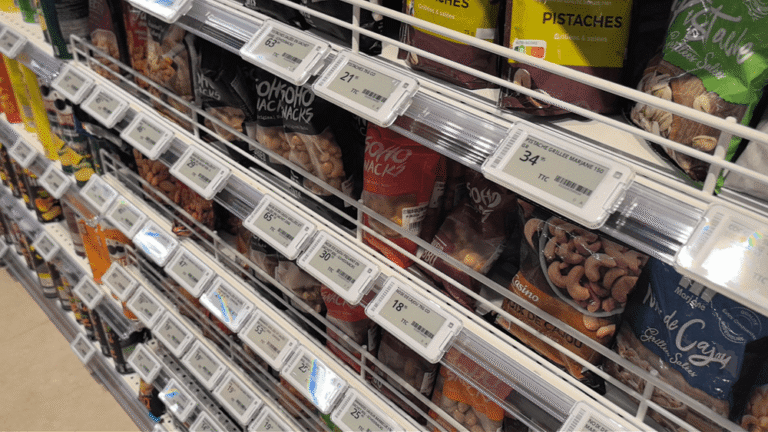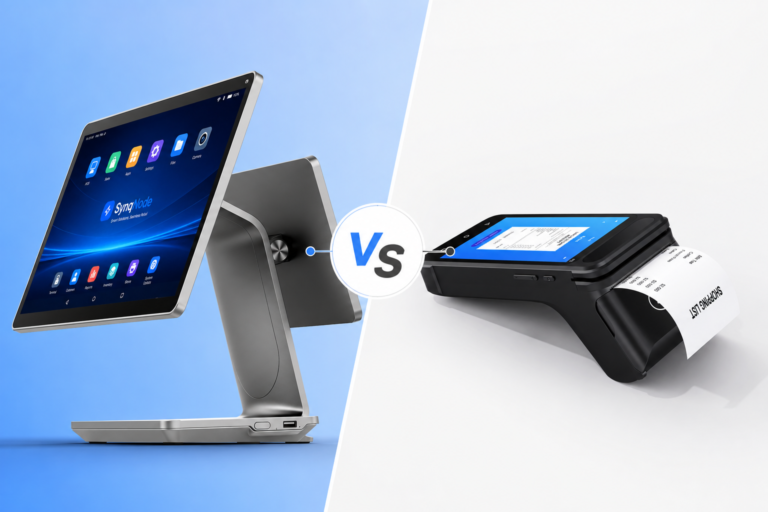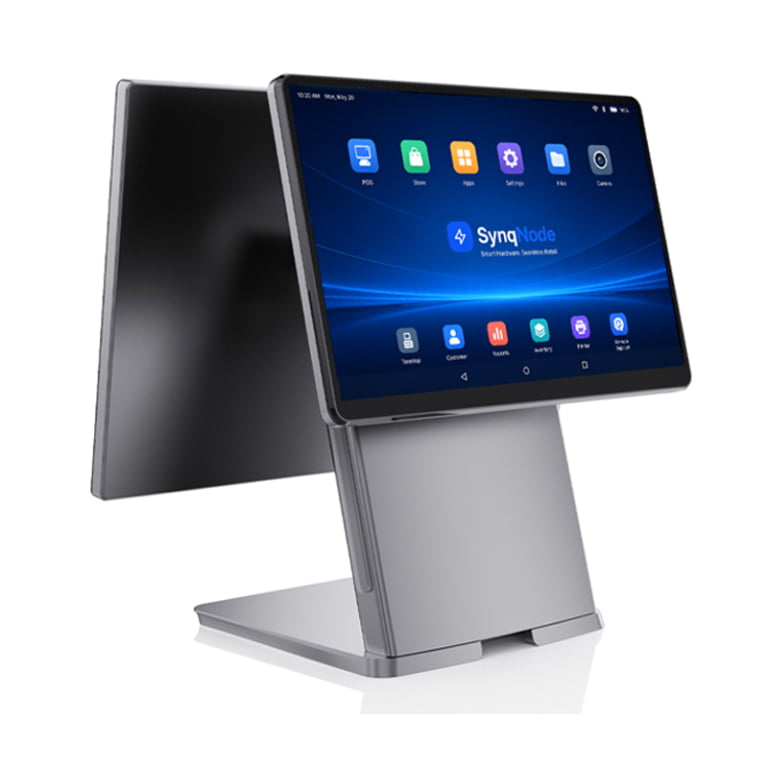
Cloud POS software has changed the rules for hardware selection. This technical guide breaks down the exact hardware requirements for running cloud POS platforms reliably — covering operating system compatibility, processing power, connectivity, offline mode, peripheral driver integration, and API/SDK access. Written for POS software vendors (ISVs), system integrators, and retail chain IT teams who need to specify or manufacture hardware that runs cloud POS without conflicts.
Table of Contents
- The Shift: Traditional POS vs. Cloud POS Hardware
- Operating System Requirements
- Processing Power and Memory Specs
- Connectivity: Network Requirements for Cloud POS
- Offline Mode and Local Caching
- Peripheral Integration: Scanners, Printers, Cash Drawers
- Display and Touch Screen Requirements
- Self-Service Kiosk Hardware for Cloud POS
- Edge Computing and IoT Gateway Role
- API and SDK Integration: What ISVs Need
- Cloud POS Hardware Requirements Checklist
- Frequently Asked Questions
1. The Shift: Traditional POS vs. Cloud POS Hardware
Understanding how cloud POS changes hardware requirements starts with understanding what cloud POS actually is — and what it is not.
Traditional POS Architecture
In a traditional on-premise POS system, the POS software is installed locally on a terminal or server. All transaction processing, inventory data, and pricing logic run on the local machine. The hardware is tightly coupled to the software — often requiring a specific OS version, specific driver versions, and a local database server. If the terminal fails, the entire checkout lane goes down.
Cloud POS Architecture
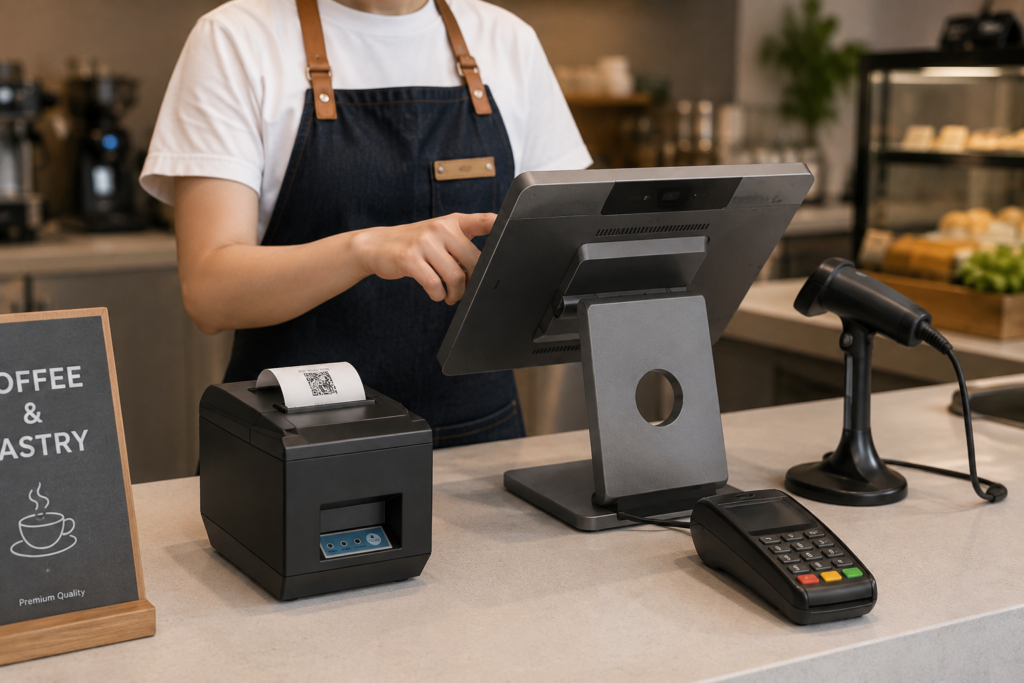
In a cloud POS architecture, the POS application runs in a web browser or a thin client app. Transaction processing, inventory management, pricing logic, and reporting all happen on remote cloud servers. The local terminal is primarily a presentation layer and peripheral controller — it renders the UI, captures user input, and interfaces with hardware peripherals (scanner, printer, cash drawer). Data synchronization happens in real time over the internet.
This architectural shift changes the hardware requirements in several fundamental ways:
| Requirement | Traditional POS | Cloud POS |
|---|---|---|
| Local processing power | High — runs full application stack locally | Moderate — renders UI and handles peripheral I/O |
| Local storage | Large — local database, logs, backups | Minimal — cache and temporary files only |
| Network dependency | Low — operates fully offline | High — requires stable internet, with offline fallback |
| OS lock-in | High — often tied to specific Windows version | Low — browser-based, OS-agnostic |
| Deployment model | Per-terminal software installation | Centralized — login from any compatible device |
| Scalability | License per terminal | Add terminals by logging in — no new software install |
Key Insight for ISVs: Cloud POS reduces local processing requirements but increases the importance of network reliability, browser compatibility, and peripheral driver abstraction. Your hardware partner must provide drivers that work across operating systems — not just one OS version.
2. Operating System Requirements
One of the most significant advantages of cloud POS is OS flexibility. Since the application runs in a browser or thin client, the terminal's operating system becomes less critical — but it still matters for peripheral integration and long-term support.
Windows 10/11 IoT Enterprise
Windows remains the most widely deployed OS in retail POS terminals, and for good reason:
- Peripheral driver ecosystem: Most POS peripherals (printers, scanners, cash drawers, scales) have mature Windows drivers. If you rely on COM/serial peripherals, Windows is still the safest choice.
- Embedded features: Windows IoT Enterprise provides Unified Write Filter (UWF), Device Lockdown, and Keyboard Filter — essential for kiosk-mode deployments where the terminal must resist tampering.
- Long-term servicing: Windows 10 IoT Enterprise LTSC provides 10 years of support. Windows 11 IoT Enterprise extends this further. This aligns with the 5–7 year replacement cycle of retail hardware.
- Browser compatibility: Chrome, Edge, and Firefox all run on Windows IoT, giving you browser choice for your cloud POS frontend.
Android (11/13/14 with GMS)
Android is the fastest-growing OS in the POS terminal market, particularly for cloud POS deployments:
- Lower hardware cost: Android POS terminals are typically 30–50% cheaper than equivalent Windows terminals.
- Touch-first architecture: Android was designed for touch interaction, making it ideal for tablet-style and handheld POS form factors.
- Faster boot times: Android terminals boot in 10–20 seconds vs. 30–60 seconds for Windows.
- Cloud-native: Android apps are inherently designed for cloud connectivity, background sync, and push notifications.
- Google Mobile Services (GMS): If your cloud POS app is distributed via Google Play, you need GMS-certified hardware. Always verify GMS certification — non-GMS devices cannot access the Play Store.
Critical Check: Not all Android POS hardware is GMS-certified. If your cloud POS application requires Google Play Services (for push notifications, maps, or Play Store distribution), you must verify GMS certification before purchasing. Non-GMS devices require side-loading your APK — which complicates deployment and updates for multi-store rollouts.
Linux (Embedded)
Linux is used in specialized deployments where full OS-level control is required:
- Kiosk-mode cloud POS: A locked-down Linux browser (e.g., Chromium kiosk mode) provides a single-purpose terminal with minimal attack surface.
- IoT gateways: Fanless Linux Mini PCs serve as edge computing nodes connecting ESL networks, scanners, and cloud platforms.
- Custom integrations: Organizations with in-house Linux expertise can build custom thin clients optimized for their cloud POS frontend.
Recommended OS by Deployment Scenario
| Scenario | Recommended OS | Why |
|---|---|---|
| Supermarket fixed-lane checkout | Windows 10/11 IoT | Mature peripheral drivers, COM/serial device support |
| Restaurant tableside ordering | Android 13 GMS | Touch-first, lower cost, faster boot, mobile form factor |
| Self-service kiosk | Windows IoT (kiosk mode) or Linux | Lockdown features, tamper resistance, browser-only access |
| Compact retail / boutique | Android GMS | Affordable, touch-optimized, cloud-native |
| ESL gateway / edge computing | Linux (embedded) | Lightweight, stable, full I/O control, long uptime |
SynqNode Advantage: Our POS terminals support Windows 10/11 IoT, Android 11/13 GMS, and Linux natively on the same mainboard. You can specify the OS per deployment without changing hardware — ideal for ISVs supporting mixed-environment retail chains. Download SDKs and certified drivers for all three platforms.
3. Processing Power and Memory Specs
Cloud POS shifts processing from the local terminal to the cloud — but the terminal still needs adequate CPU and RAM to render the UI smoothly, handle peripheral interrupts, and cache data for offline mode. Here are the minimum and recommended specifications:
| Component | Minimum Spec | Recommended Spec | Why It Matters |
|---|---|---|---|
| Processor (Windows) | Intel Celeron J4125 (4-core, 2.0GHz) | Intel Core i3/i5 (4-core, 2.4GHz+) | Browser rendering + peripheral drivers + background sync |
| Processor (Android) | Rockchip RK3568 (4-core, 2.0GHz) | Qualcomm 8-core (2.4GHz+) or MediaTek Dimensity | App responsiveness, especially during peak transaction volume |
| RAM | 4 GB | 8 GB | Browser tabs + local cache + OS overhead |
| Storage (eMMC/SSD) | 32 GB | 64–128 GB | OS image + cached transactions + log files |
| GPU | Integrated (Intel UHD / Mali) | Discrete or higher-end iGPU | Smooth UI animations, dual-screen rendering |
Why 4 GB RAM is the Minimum — Not the Ideal
Many cloud POS vendors claim their software runs on any device with 2 GB RAM. Technically true — but operationally risky. Here is what consumes RAM on a cloud POS terminal:
- Browser engine: Chrome/Edge consume 1–2 GB just for rendering a modern web application
- OS overhead: Windows 11 IoT uses ~1.5 GB idle; Android 13 uses ~1 GB
- Peripheral services: Printer spooler, scanner daemon, cash drawer driver — 200–500 MB
- Local cache: Offline transaction queue and product database cache — 200–500 MB
- Background sync: Data synchronization service uploading transactions to the cloud — 100–200 MB
Add it up: 4 GB is the floor. 8 GB gives you headroom for peak transaction volume, multiple browser tabs, and future software updates.
Aging Hardware Warning: Devices manufactured before 2019 with 2 GB RAM and single-core processors will struggle with modern cloud POS frontends. Symptoms include: UI lag during peak hours, peripheral disconnections when the browser is under memory pressure, and incomplete offline sync. If you are deploying cloud POS on existing hardware, audit the RAM and processor generation first.
4. Connectivity: Network Requirements for Cloud POS
Cloud POS depends on internet connectivity — but not all connectivity is equal. The quality of your network connection directly affects transaction speed, real-time inventory accuracy, and the frequency of offline fallback activation.
Bandwidth vs. Latency: What Actually Matters
Many retailers assume they need high bandwidth for cloud POS. In reality, cloud POS transactions use very little data — typically 5–50 KB per transaction. What matters more is latency and stability:
| Network Metric | Minimum | Recommended | Impact |
|---|---|---|---|
| Bandwidth | 5 Mbps | 10+ Mbps | Adequate for transaction data; more needed if syncing large product catalogs |
| Latency (ping to cloud server) | <200 ms | <100 ms | High latency = slow UI response, especially for search and autocomplete |
| Packet loss | <1% | <0.1% | Lost packets = failed API calls, retry storms, sync backlogs |
| Connection stability | 99.5% uptime | 99.9%+ uptime | Intermittent drops trigger offline mode, causing sync delays |
The Three-Layer Connectivity Strategy
A production cloud POS deployment should have three connectivity layers:
- Primary: Wired Ethernet (Gigabit) — The most stable, lowest-latency option for fixed-lane terminals. Wire every checkout lane that has a fixed position. Ethernet eliminates Wi-Fi interference, channel congestion, and roaming handoff issues.
- Secondary: Wi-Fi 6 (802.11ax) — For mobile and handheld POS devices that cannot be wired. Wi-Fi 6 handles dense device environments (30+ concurrent connections per access point) far better than Wi-Fi 5. Ensure access points are positioned for full store coverage — not just the back office.
- Tertiary: 4G/LTE Cellular Failover — When both wired and Wi-Fi fail, a built-in 4G SIM slot or external 4G router keeps the terminal connected. The terminal should automatically switch to cellular failover without requiring staff intervention. Configure data caps and test failover before go-live.
ISV Integration Tip: Your cloud POS application should detect network status changes (online → offline → online) and handle them gracefully. Use the browser's navigator.onLine API and the online/offline events to trigger offline mode. Queue transactions locally (IndexedDB or local storage) and flush them when connectivity returns. Never show a raw "connection error" to the cashier — display a friendly "offline mode active" indicator.
5. Offline Mode and Local Caching
No internet connection is 100% reliable. A robust cloud POS system must continue operating during network outages — and the hardware plays a critical role in enabling this.
What Offline Mode Requires from Hardware
- Sufficient local storage: The terminal must have 32+ GB of storage to cache the product database, pending transactions, and transaction audit logs while offline. Cloud POS apps typically cache 5,000–50,000 SKUs locally for offline search and checkout.
- Adequate RAM: The local cache (product catalog, pricing rules, customer data) is loaded into RAM for fast search. With 4 GB RAM, expect to cache ~10,000 SKUs. With 8 GB, you can cache 50,000+ SKUs with full pricing rules.
- Reliable peripheral operation: Scanners, printers, and cash drawers must continue functioning offline. This requires local peripheral drivers — not cloud-dependent driver services. Verify that your hardware partner provides local drivers, not just cloud-based print APIs.
- Transaction integrity: Offline transactions must be stored locally with cryptographic integrity (hash chain or digital signature) to prevent tampering. When connectivity returns, the sync process must handle conflicts (e.g., if a price changed in the cloud while the terminal was offline).
Offline Mode Limitations
Be transparent with your team about what offline mode can and cannot do:
- Works offline: Product lookup via cached catalog, barcode scanning, checkout, receipt printing, cash drawer operation
- Limited offline: Inventory updates (may not sync to cloud until reconnection), customer loyalty points (depends on implementation)
- Does not work offline: Real-time cloud price changes, online payment authorization, multi-store inventory queries, cloud-based reporting
6. Peripheral Integration: Scanners, Printers, Cash Drawers
The most common cloud POS deployment failure is peripheral incompatibility. A cloud POS application running in a browser cannot directly access USB or COM devices — it needs a bridge. Here is how peripheral integration works in modern cloud POS architectures:
The Browser-Peripheral Gap
Web browsers are sandboxed — they cannot directly access USB, COM, or Bluetooth hardware. This creates a gap between the cloud POS frontend (running in the browser) and the physical peripherals. There are three solutions to bridge this gap:
| Integration Method | How It Works | Pros | Cons |
|---|---|---|---|
| Local Agent / Helper Service | A lightweight local service (installed on the terminal) exposes peripherals via localhost REST API or WebSocket. The browser app calls localhost:8080/print to trigger the printer. | Full peripheral access, cross-browser compatible | Requires installing a service on each terminal |
| Native App (Not Browser) | Instead of a browser, the cloud POS runs as a native Android/Windows app with direct hardware API access. | Best peripheral integration, no browser sandbox limits | Requires per-OS app development; loses browser portability |
| Web USB / Web Bluetooth API | Modern browsers support direct USB and Bluetooth access via JavaScript APIs (WebUSB, Web Bluetooth). | No local agent needed; pure browser solution | Limited browser support (Chrome/Edge only); limited peripheral compatibility |
Peripheral Driver Requirements
Regardless of the integration method, your hardware partner must provide:
- ESC/POS compatible thermal printer driver: The de facto standard for POS receipt printers. Your local agent or native app sends ESC/POS commands to the printer driver. Verify 80mm paper width support, auto-cutter functionality, and logo/image printing capability.
- HID or COM barcode scanner driver: Most barcode scanners operate in HID (keyboard emulation) mode — scanned data appears as keyboard input. This works in the browser without a driver. For more advanced control (scanner beep, multi-scan, light control), you need a COM or USB driver.
- RJ11 cash drawer driver: Cash drawers are triggered via the receipt printer (RJ11 connection) or via a dedicated COM port. The local agent sends a kick command to open the drawer after each cash transaction.
- Customer display driver: If you use a secondary customer-facing display, it typically connects via HDMI/VGA (for full-screen content) or USB (for line-display text). HDMI displays require no driver — the browser extends to the second screen. USB line displays require a COM driver.
SynqNode Integration: We provide certified peripheral SDKs and driver packages for Windows, Android, and Linux. Our driver package includes a local helper service that exposes printer, scanner, and cash drawer functions via localhost REST API — compatible with any browser-based cloud POS frontend. View POS printers and POS terminals with built-in printer options.
7. Display and Touch Screen Requirements
The display is the primary interface between staff and the cloud POS system. Poor display specs directly cause checkout delays and staff frustration.
Screen Size Guidelines
>Portrait or landscape >Landscape (16:9) >Dual-screen landscape >Portrait (vertical) >Portrait
| Deployment | Screen Size | Orientation |
|---|---|---|
| Compact retail / boutique counter | 10–12" | |
| Standard retail checkout lane | 15.6" | |
| Supermarket / high-volume checkout | 15.6" + secondary customer display | |
| Self-service kiosk | 21.5–32" | |
| Handheld / mobile POS | 5–8" |
Touch Technology: Capacitive is Mandatory
Use capacitive touch screens, not resistive. Capacitive screens are more responsive, support multi-touch gestures (pinch-to-zoom for product images), and are more durable (no pressure-based wear). Resistive screens feel sluggish, cannot register light touches, and wear out faster in high-traffic environments.
Brightness for Store Environments
- Indoor standard: 250+ nits is adequate for most retail counters
- Near windows / skylights: 400+ nits to remain readable in direct sunlight
- Outdoor / semi-outdoor kiosks: 500–1000+ nits (high-brightness panels with anti-glare coating)
8. Self-Service Kiosk Hardware for Cloud POS
Self-service kiosks running cloud POS software have specific hardware requirements that differ from staffed checkout terminals:
Kiosk-Specific Requirements
- Touch screen: 21.5" to 32" vertical (portrait) capacitive touch, rated for 50 million+ touches (public use wear is much higher than staffed terminals)
- Integrated payment terminal: NFC contactless, EMV chip reader, and QR code scanner built into the kiosk chassis
- Receipt printer: Thermal printer with auto-cutter, built into the kiosk body. Must handle large paper rolls (80mm, 80mm+ length) to reduce maintenance frequency.
- OS lockdown: Windows IoT Enterprise with Assigned Access (single-app kiosk mode) or Android with Kiosk Mode. The terminal must only run the cloud POS browser — no access to settings, other apps, or the desktop.
- Physical security: Tamper-resistant mounting, lockable service panel, and cable management to prevent peripheral theft.
- Accessibility: Touch screen mounted at ADA-compliant height (15–48 inches from the floor). Audio jack for screen reader output.
Explore SynqNode Self-Service Kiosks for cloud POS kiosk hardware with integrated payment and printing.
9. Edge Computing and IoT Gateway Role
In modern smart store architectures, cloud POS does not exist in isolation. It connects to a broader ecosystem of ESL networks, inventory scanners, and IoT sensors. This is where edge computing hardware — specifically industrial Mini PCs and IoT gateways — plays a critical role.
What an Edge Gateway Does in a Cloud POS Architecture
- ESL network management: The gateway connects to ESL access points and relays price updates from the cloud pricing engine to shelf-edge labels. It also monitors label battery health and reports status to the cloud.
- Scanner aggregation: In warehouse and inventory scenarios, the gateway collects scan data from multiple handheld PDAs and syncs it to the cloud WMS.
- Local data processing: The gateway can process certain data locally (e.g., ESL update batching, scanner data deduplication) to reduce cloud API calls and latency.
- Network bridge: The gateway connects devices that use non-IP protocols (2.4GHz ESL, 433MHz scanners) to the IP-based store network and cloud platform.
Edge Gateway Hardware Requirements
- Fanless design: No moving parts, no dust intake, 24/7 operation without maintenance
- Rich I/O: Multiple LAN ports, USB, COM, and wireless (Wi-Fi + 4G) for connecting diverse device ecosystems
- Linux OS: Lightweight, stable, long-uptime capable
- Processing power: Sufficient to run local data processing tasks (ARM 4-core or x86 dual-core minimum)
- Storage: 32+ GB for log retention and local cache
See SynqNode Industrial Mini PCs for fanless edge computing hardware designed for smart store infrastructure.
10. API and SDK Integration: What ISVs Need
For POS software vendors building cloud POS platforms, the hardware partner's API and SDK offering is the single most important evaluation criterion. A great terminal with no SDK is a brick. Here is what to demand:
Peripheral SDK
Your hardware partner must provide SDKs that allow your cloud POS application (or local agent) to control peripherals programmatically:
- Printer SDK: Send ESC/POS commands, print logos/images, control auto-cutter, check paper-out status, query printer temperature
- Scanner SDK: Configure scan mode (continuous, trigger, presentation), set beep volume, enable/disable specific barcode types, capture scan data with timestamp
- Cash Drawer SDK: Trigger drawer open, check drawer open/closed status, configure multi-drawer setups
- Customer Display SDK: Push content to secondary display (promotional content, transaction line items, total amount)
ESL REST API
If your cloud POS platform includes pricing management, you need an ESL REST API to push price updates to electronic shelf labels:
- Update single label price
- Bulk update by store, category, or SKU list
- Schedule promotional pricing windows
- Query label status (battery, signal, last update)
- Retrieve audit logs and error reports
Certified Drivers
Drivers must be certified for the specific OS versions you deploy on. Ask your hardware partner for:
- Windows 10/11 IoT certified drivers (WHQL or partner-signed)
- Android 11/13 HAL drivers for your specific SoC platform
- Linux kernel modules for embedded distributions
Integration Red Flag: If a hardware vendor cannot provide SDK documentation, API references, or certified drivers for your target OS, you are looking at a closed proprietary ecosystem. Your cloud POS software will be limited to whatever the vendor's own software supports — you cannot build differentiated features. Always request SDK access before committing to a hardware partner.
Cloud POS Hardware Requirements Checklist
Use this checklist when evaluating POS hardware for a cloud POS deployment:
- OS certified: Hardware supports Windows 10/11 IoT, Android 11/13 GMS, or Linux — factory-certified for your target OS
- Processor adequate: 4-core minimum (Intel J4125 or equivalent); 8-core recommended for high-volume stores
- RAM sufficient: 4 GB minimum; 8 GB recommended for stores with 10,000+ SKUs or dual-screen setups
- Storage adequate: 32 GB minimum for OS + local cache; 64 GB recommended for offline mode with large catalogs
- Touch screen: Capacitive touch, 15.6" for standard checkout; 10–12" for compact; 400+ nits near windows
- Ethernet port: Gigabit RJ45 for wired primary connection on fixed-lane terminals
- Wi-Fi 6: 802.11ax support for mobile/handheld POS in dense device environments
- 4G/LTE failover: Built-in SIM slot or support for external failover router
- USB ports: Minimum 3 USB-A ports for peripherals (scanner, printer, cash drawer)
- COM/Serial: At least 1 COM port for legacy peripherals and cash drawer trigger
- HDMI/VGA: Secondary display output for customer-facing screen
- Bluetooth 5.0+: For wireless scanner and printer connectivity
- Peripheral SDK: Printer, scanner, cash drawer, and customer display SDKs provided
- ESL REST API: If deploying electronic shelf labels — REST API for price management
- Certified drivers: WHQL-signed Windows drivers, Android HAL drivers, or Linux kernel modules
- Local agent support: Hardware partner provides a local helper service for browser-based peripheral access
- Fanless design: For 24/7 commercial operation — eliminates dust intake and moving-part failures
- Offline mode capability: Terminal can cache product catalog and queue transactions locally during network outages
- Kiosk mode support: OS supports single-app lockdown (Windows Assigned Access or Android Kiosk Mode) for self-service deployments
- Long-term supply: Vendor guarantees model continuity for 3–5 years for consistent multi-store deployment
Building a Cloud POS Hardware Strategy?
SynqNode engineers POS terminals, industrial Mini PCs, kiosks, and ESL systems with open SDKs, REST APIs, and certified drivers for Windows, Android, and Linux. We help ISVs and system integrators deploy cloud POS at scale — without hardware-software conflicts.Request Hardware Consultation
Frequently Asked Questions
Can cloud POS software run on any device?
Technically, cloud POS runs in any modern web browser, so it can run on most devices. However, for production retail deployment, you need a terminal with adequate RAM (4 GB+), a capacitive touch screen, peripheral connectivity (USB, COM, Bluetooth), and reliable network connectivity (Ethernet + Wi-Fi + 4G failover). Consumer tablets lack the durability, I/O ports, and peripheral driver support required for commercial operation.
Do I need a local server for cloud POS?
No. Cloud POS stores all data on remote servers — you do not need a local database server. However, you do need local caching on the terminal for offline mode. The terminal's local storage (32+ GB SSD/eMMC) serves as the cache for product catalogs, pending transactions, and audit logs during network outages. An edge computing Mini PC may serve as a local gateway for ESL networks and scanner aggregation, but this is not a database server — it is an IoT bridge.
How does a browser-based cloud POS control printers and scanners?
Web browsers are sandboxed and cannot directly access USB or COM devices. The standard solution is a local agent — a lightweight service installed on the terminal that exposes peripheral functions via a localhost REST API. The browser app calls localhost:8080/print to trigger the printer. Alternatively, some cloud POS platforms run as native apps (not in a browser) with direct hardware API access. WebUSB and Web Bluetooth APIs exist but have limited browser and peripheral support.
What happens to cloud POS when the internet goes down?
A well-architected cloud POS continues operating during network outages via offline mode. The terminal caches the product catalog locally, queues transactions in local storage, and continues to operate scanners, printers, and cash drawers using local drivers. When connectivity returns, the queued transactions are synced to the cloud. Limitations: real-time cloud price changes, online payment authorization, and multi-store inventory queries do not work offline.
Windows or Android for cloud POS?
Both work for cloud POS. Choose Windows if you need mature peripheral drivers (especially COM/serial devices), long-term OS lifecycle support (10 years), or Active Directory integration. Choose Android for lower hardware cost (30–50% cheaper), faster boot times, touch-first UX, and if your POS app is distributed via Google Play (requires GMS-certified hardware). Many modern terminals support both OS options on the same hardware — ask your vendor about dual-OS configuration.
How much RAM does a cloud POS terminal need?
4 GB is the absolute minimum. The browser engine alone consumes 1–2 GB, plus OS overhead (1–1.5 GB), peripheral services (200–500 MB), and local cache (200–500 MB). At 4 GB, you will experience memory pressure during peak hours. 8 GB is recommended for smooth operation, especially with large product catalogs (10,000+ SKUs), dual-screen setups, or heavy offline caching.
What SDK and API documentation should I ask a hardware vendor for?
Demand: (1) peripheral SDKs for printer, scanner, cash drawer, and customer display; (2) ESL REST API for price management (if deploying electronic shelf labels); (3) certified drivers for your target OS (Windows WHQL, Android HAL, Linux kernel modules); (4) a local agent or helper service for browser-based peripheral access; and (5) technical support contacts for integration assistance. If a vendor cannot provide these, look elsewhere.
Cloud POSPOS HardwareISV IntegrationSDKPeripheral DriversOffline ModeEdge Computing
Looking for more retail hardware insights? Explore our POS Terminal Portfolio, Industrial Mini PCs for edge computing, or download SDKs and driver packages for your integration project.
About SynqNode: We are a B2B retail hardware manufacturer engineering POS terminals, electronic shelf labels, self-service kiosks, industrial Mini PCs, and peripheral devices for POS software vendors, system integrators, retail chains, and distributors worldwide.